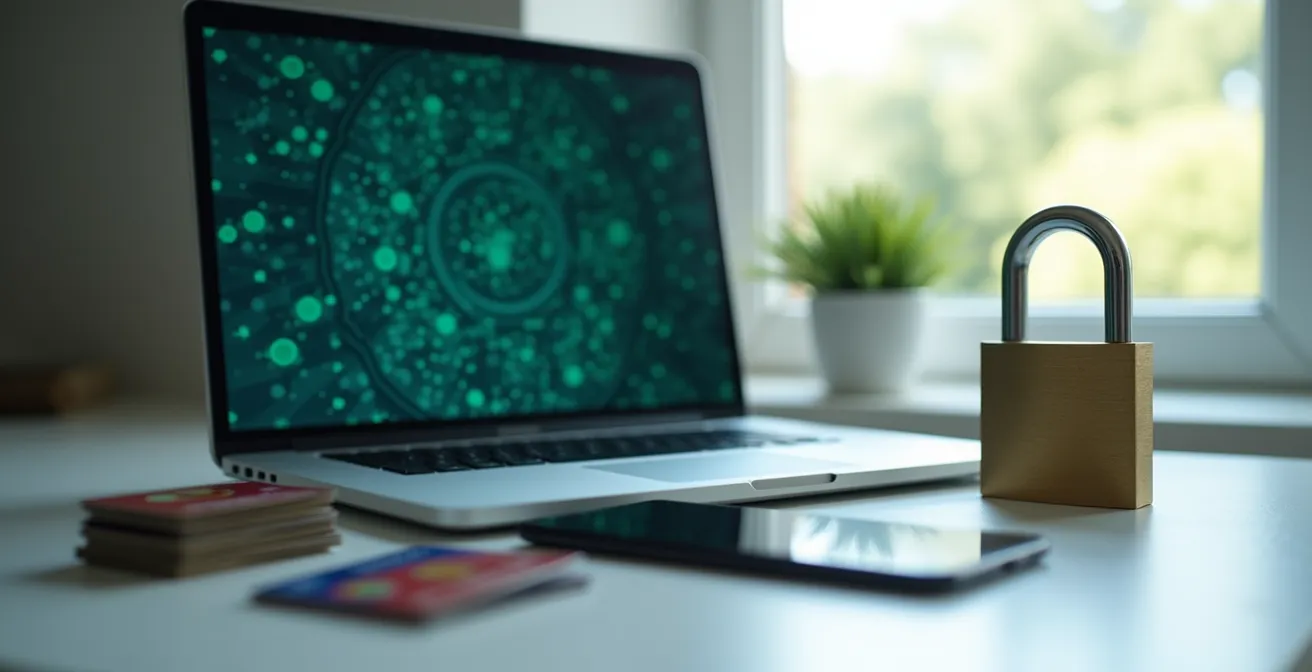
In summary:
- Staying safe online is not about being a tech expert, but about building a few simple, common-sense habits.
- Always look for the “digital lock” (HTTPS) on any page where you enter payment information, which acts like an armored truck for your data.
- Using a credit card instead of a debit card provides a critical financial safety net, as you are disputing the bank’s money, not your own.
- Avoid the “one key for everything” mistake by using a simple password manager, which is easier and safer than a physical notebook.
The idea of shopping online can feel a little daunting. You hear stories on the news about scams and data theft, and it’s natural to feel hesitant. Many are told to “look for the padlock” or “use strong passwords,” but this advice often feels like a long, confusing checklist of technical rules. It can leave you feeling more anxious than empowered, wondering if you’ve missed a step that could put you at risk.
But what if the secret to online safety wasn’t about memorizing complex rules? What if it was about understanding a few core ideas—a kind of digital common sense that you can apply anywhere, just like you would in the physical world? The goal isn’t to turn you into a computer expert overnight. It’s to give you the confidence that comes from knowing what truly matters and why.
This guide is designed to do just that. We’ll walk through these simple concepts one by one, using everyday analogies to demystify the technology. You’ll learn not just *what* to do, but *why* it works, so you can feel secure and in control of your online shopping experience. By the end, you’ll see that protecting yourself is more straightforward than you might think.
To help you navigate this journey toward confident online shopping, we have broken down the essential concepts into clear, manageable sections. You can explore them in order or jump to the topic that interests you most.
Summary: Your Guide to Confident Online Shopping
- Why Does the Little Lock Icon Matter for Your Credit Card?
- How to Enable 2FA on Amazon and PayPal in 5 Simple Steps?
- Credit or Debit: Which Card Is Safer to Use on New Websites?
- The “Package Delivery” Email Scam That Fools 30% of Shoppers
- Stopping the Notebook Habit: Switching to a Password Manager Simply
- The Security Gap in Home Fiber Networks That Hackers Love
- Custom GPT or Standard ChatGPT: Which Is Safer for Client Data?
- How to Run a Global Business From a Rural Area Using High-Speed Fiber?
Why Does the Little Lock Icon Matter for Your Credit Card?
You’ve probably heard the advice: “Only shop on websites with the little padlock icon in the address bar.” It’s sound advice, but it’s also a point of confusion for many. In fact, you’re not alone if you’re unsure what it really means. Recent research shows that only 5% of UK adults correctly understand the padlock icon. So, let’s clear it up with a simple analogy.
Imagine you want to send your credit card number to a store. An unsecured website (one without a lock, often starting with HTTP) is like sending your information on the back of a postcard. Anyone who intercepts the mail—hackers, in this case—can read it easily. A secure website (with a lock, starting with HTTPS) is like putting your information inside a locked, armored truck. Even if someone manages to stop the truck, they can’t get inside to see what you’re sending. The padlock icon is your visual confirmation that the armored truck is being used.

This “armored truck” is a technology called SSL/TLS encryption. You don’t need to know how it works, only that it scrambles your information into an unreadable code as it travels from your computer to the store’s server. When you’re on a checkout page, always glance at the address bar. Seeing that lock is the single most important piece of digital common sense to ensure your payment details are protected during transit. It’s your first and most basic line of defense.
How to Enable 2FA on Amazon and PayPal in 5 Simple Steps?
The term “two-factor authentication” (or 2FA) sounds technical and intimidating, but the idea behind it is simple and powerful. It’s like having two different locks on your front door. A password is the first lock. 2FA is the second, separate lock that requires a different key. This “second key” is usually something only you have, like a temporary code sent to your phone. Even if a thief steals your password, they can’t get into your account because they don’t have your phone. This extra layer of security is becoming a standard, with a recent report indicating that 67% of companies implemented 2FA in 2024, showing how essential it has become.
Enabling it on major sites like Amazon and PayPal is one of the most effective things you can do to protect your accounts. It’s a one-time setup that provides continuous protection. While the exact steps vary slightly, the process is always similar: you tell the website you want to add this second lock, and you link it to your phone. It’s a small effort for a huge boost in peace of mind.
Think of it as your digital fingerprint; it proves that the person logging in is truly you. It turns your phone into a physical key that criminals don’t have. Taking a few minutes to set this up on your most important accounts—especially those with saved payment information—is a crucial step toward worry-free online activity.
Your Action Plan: Enabling 2FA on Major Sites
- Log in and find ‘Account Settings’ or ‘Security’: This is usually under your profile or a gear icon.
- Look for ‘Two-Step Verification’ or ‘2FA’: This option will be in the security section.
- Choose your verification method: You’ll typically have the choice between receiving a code via text message (easiest) or using an authenticator app.
- Link your phone: Follow the on-screen instructions to enter your phone number and verify it with a code they send you.
- Save your backup codes: The site will often provide emergency codes. Print them and keep them somewhere safe in case you lose your phone.
Credit or Debit: Which Card Is Safer to Use on New Websites?
When you’re ready to pay, you face a choice: credit card or debit card? They may look the same, but in the online world, they offer vastly different levels of protection. Using a credit card is like having a financial safety net. When you make a purchase, you are technically borrowing the bank’s money. If a fraudulent charge appears, you are disputing the bank’s funds, not your own. Your actual cash remains safe in your account. The law protects you, typically limiting your liability for fraudulent charges to a maximum of $50.
A debit card, on the other hand, is directly linked to your bank account. If a scammer gets your debit card number, they can drain your funds directly. As the U.S. Department of Veterans Affairs warns in its guidance on identity theft, “If an identity thief gets hold of your debit card information, he or she can drain your bank account.” While banks have fraud protection systems, getting your money back can be a slower, more stressful process because the funds are already gone from your account.
For this reason, a simple rule of digital common sense is to use a credit card for all online purchases, especially on websites you’re using for the first time. Reserve your debit card for trusted, recurring bills or for getting cash from an ATM. This simple habit doesn’t cost you anything, but it provides an invaluable layer of protection and peace of mind.
| Security Feature | Credit Card | Debit Card |
|---|---|---|
| Fraud Liability | Maximum $50 by law | Varies, potentially unlimited if not reported quickly |
| Money at Risk | Bank’s money | Your actual bank account funds |
| Dispute Process | Can dispute while investigation ongoing | Money gone until investigation complete |
| Recommended for | New/unknown websites | Trusted recurring bills only |
The “Package Delivery” Email Scam That Fools 30% of Shoppers
You’ve placed an order online and are eagerly awaiting its arrival. Then, you receive an email or text message: “There’s a problem with your package delivery. Click here to update your information.” This is one of the most common and effective scams today, preying on our anticipation and creating a false sense of urgency. Scammers send out millions of these messages, sometimes as many as 100,000 texts a day from a single operation, hoping to catch people off guard. The goal is to trick you into clicking a link that leads to a fake website designed to steal your login credentials or credit card information.
The financial toll of these scams is staggering. The Federal Trade Commission reports that Americans lost nearly $470 million in losses to text-based scams in 2024 alone. These criminals are professionals at making their messages look official, often using the logos of well-known delivery services like USPS, FedEx, or UPS.
So how do you protect yourself? The digital common sense rule here is simple: never trust, always verify. No matter how legitimate a message looks, do not click the link. Instead, open a new browser window and go directly to the official website of the shipping company or the store where you made the purchase. Log in to your account there to check your order status. If there’s a real issue, the information will be there. This one habit—of manually visiting the official site instead of clicking a link—will protect you from nearly all of these types of phishing scams.
Stopping the Notebook Habit: Switching to a Password Manager Simply
Many of us, when starting out, write our passwords down in a notebook. It feels secure because it’s in our possession. But this creates a dangerous situation: the “one-key-for-everything” mistake. To make things easier to remember, we tend to use the same or similar passwords across multiple websites. If a scammer steals that one password from a single, low-security website, they can potentially use it to unlock your email, your bank account, and your favorite online stores. A physical notebook can also be lost, stolen, or damaged.
The modern, safer solution is a password manager. Think of it as a digital vault that remembers all of your complex, unique passwords for you. You only need to remember one single, strong “master password” to unlock the vault. The manager can then automatically fill in the correct password for each site you visit. This means you can have a completely different, impossible-to-guess password for every single account without having to remember any of them.
The thought of moving all your passwords to a new system can feel overwhelming. The key is to start small. You don’t have to switch everything over in one day. By gradually moving your most important accounts first, you can get comfortable with the process at your own pace. This gentle approach makes the transition from a vulnerable notebook to a secure digital vault feel manageable and empowering.
Your Action Plan: The Three-Site Challenge to Start Using a Password Manager
- Choose a reputable password manager (options like 1Password, Bitwarden, or LastPass are highly regarded) and install it on your computer and phone.
- Start by adding just three important accounts to your new vault: your main email, your Amazon account, and one online banking login.
- For one full week, commit to using only the password manager to log into these three sites. Let it fill the passwords for you.
- Once you feel comfortable, begin adding 2-3 more accounts each week.
- Keep your physical notebook as a temporary backup, but seal it in an envelope for emergencies only. This will help you break the habit of relying on it.
The Security Gap in Home Fiber Networks That Hackers Love
Every time you shop online, your information travels through your home internet connection. Think of your Wi-Fi router—that little box with the blinking lights—as the digital front door to your house. Just as you wouldn’t leave your physical front door unlocked, it’s important to ensure this digital door is secure. For many, the security settings on their home router are the ones it came with from the factory, and this can create an unnecessary risk.
When an internet provider installs your service, the router often comes with a default network name (like “Linksys123”) and a default password printed on a sticker. Hackers know these default passwords. If you haven’t changed them, it’s like leaving the key under the doormat. Someone could potentially access your network and monitor the traffic, looking for unsecured information.
Securing this is a simple, one-time fix. You only need to log into your router’s settings and change two things: the Wi-Fi password (the one you use to connect your devices) and the administrator password (the one that protects the router’s settings). This single action dramatically strengthens your home’s digital security, ensuring that all your online shopping and browsing activities start from a secure foundation. It’s a five-minute task that protects you for years to come.
Custom GPT or Standard ChatGPT: Which Is Safer for Client Data?
You may be seeing new tools online called “AI assistants” or “chatbots” that offer to help you with tasks, from writing an email to researching products. Services like ChatGPT can be helpful for general questions, but it’s vital to understand how to use them safely, especially when it comes to personal information. The names might be different—”Custom GPT,” “ChatGPT,” “AI helper”—but the safety principle is the same.
A helpful way to think about these public AI tools comes from a privacy expert who explained it perfectly:
Using a public AI model is like having a conversation out loud in a public park. It’s great for general knowledge, but you wouldn’t shout your address, financial details, or health concerns.
– Privacy Expert, AI Security Best Practices
This is the most important piece of digital common sense for AI: never share personal, identifying, or financial information with a public chatbot. This includes your name, address, order numbers, tracking information, or anything you wouldn’t want a stranger to know. Information you enter could potentially be used as part of the AI’s training data, meaning it could be seen by developers or even resurface in someone else’s search results. Use these tools for general research (“What are the best-rated walking shoes for seniors?”) but switch to the official store’s website for the actual purchase.
Key Takeaways
- The padlock icon (HTTPS) is non-negotiable; it’s the “armored truck” that protects your payment data in transit.
- A credit card acts as your financial safety net. It protects your personal funds by putting the bank’s money at risk, not your own.
- Start small with a password manager. Moving just three key accounts is a manageable first step to abandoning the risky notebook habit.
How to Run a Global Business From a Rural Area Using High-Speed Fiber?
Once you’ve mastered the core principles of online safety, a whole new world of shopping opens up to you. You are no longer limited to the stores in your town or even your country. A reliable, secure internet connection transforms your home into a gateway to a global marketplace. You can browse unique shops in another country, find specialty items not available locally, and compare prices from around the world, all from the comfort of your living room.
This is one of the great joys of being online, but it requires applying your digital common sense with a bit more care. When shopping from unfamiliar international websites, it’s more important than ever to verify their legitimacy. Look for professional design, clear contact information, and customer reviews on independent sites. Impersonation scams are a significant threat, and FTC data reveals that consumers reported over $1.1 billion lost to impersonation scams in 2023. Scammers may create fake storefronts that mimic real brands.
Always use your two core safety nets: the padlock icon to ensure your data is encrypted, and your credit card to protect your money. By sticking to these fundamental habits, you can confidently and safely explore the vast and exciting world of international online retail. Your secure connection is your passport to an endless aisle of possibilities.
Now that you are equipped with the knowledge and the digital common sense to stay safe, the next logical step is to put it into practice. Start with a small purchase from a well-known, trusted website. This will allow you to go through the motions—checking for the lock, using your credit card, and saving the password in your new manager—in a low-stakes environment, building the confidence you need to shop online freely and securely.